How to connect
- Log in to BuildOs Pro at https://www.buildospro.com/auth/login
- Open Integrations
- Click Connect Thumbtack and sign in with the Thumbtack Pro account
- Register the business phone the crew calls from
- New Thumbtack job requests appear on the Leads board
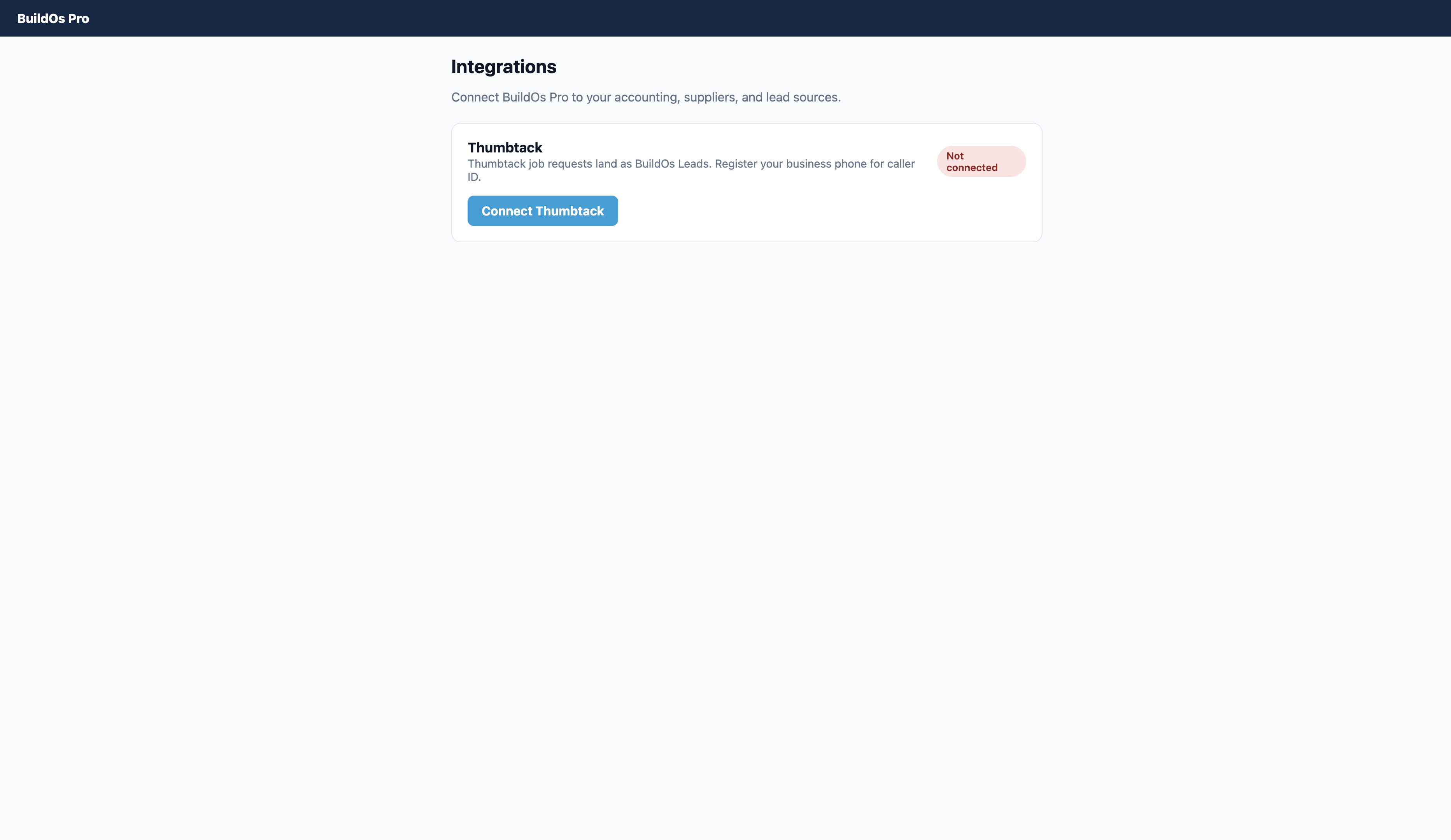
Step 1 — Integrations
The contractor opens Integrations and clicks Connect Thumbtack.
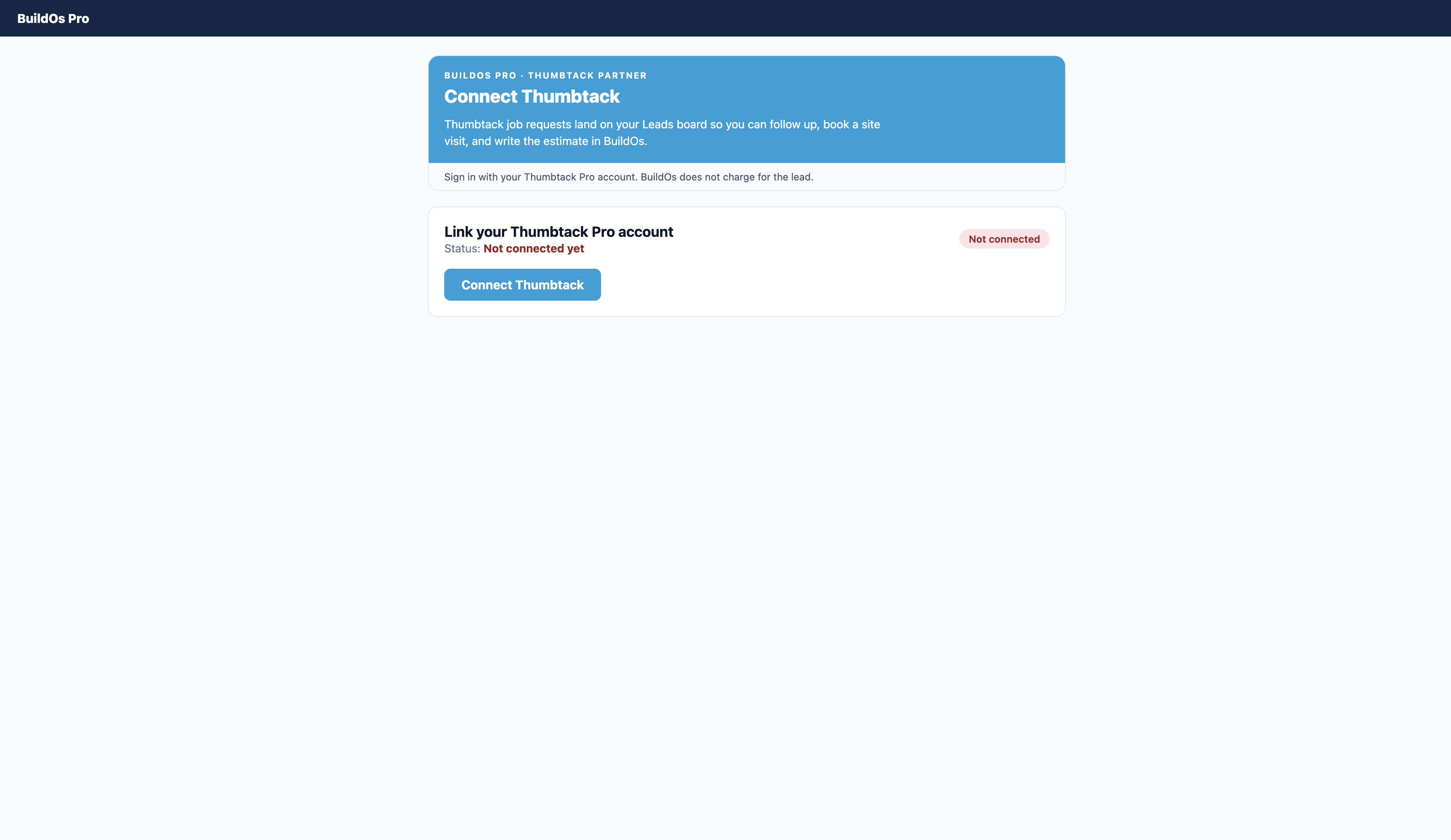
Step 2 — Connect
They sign in with their own Thumbtack Pro account. BuildOs does not buy or resell Thumbtack leads.
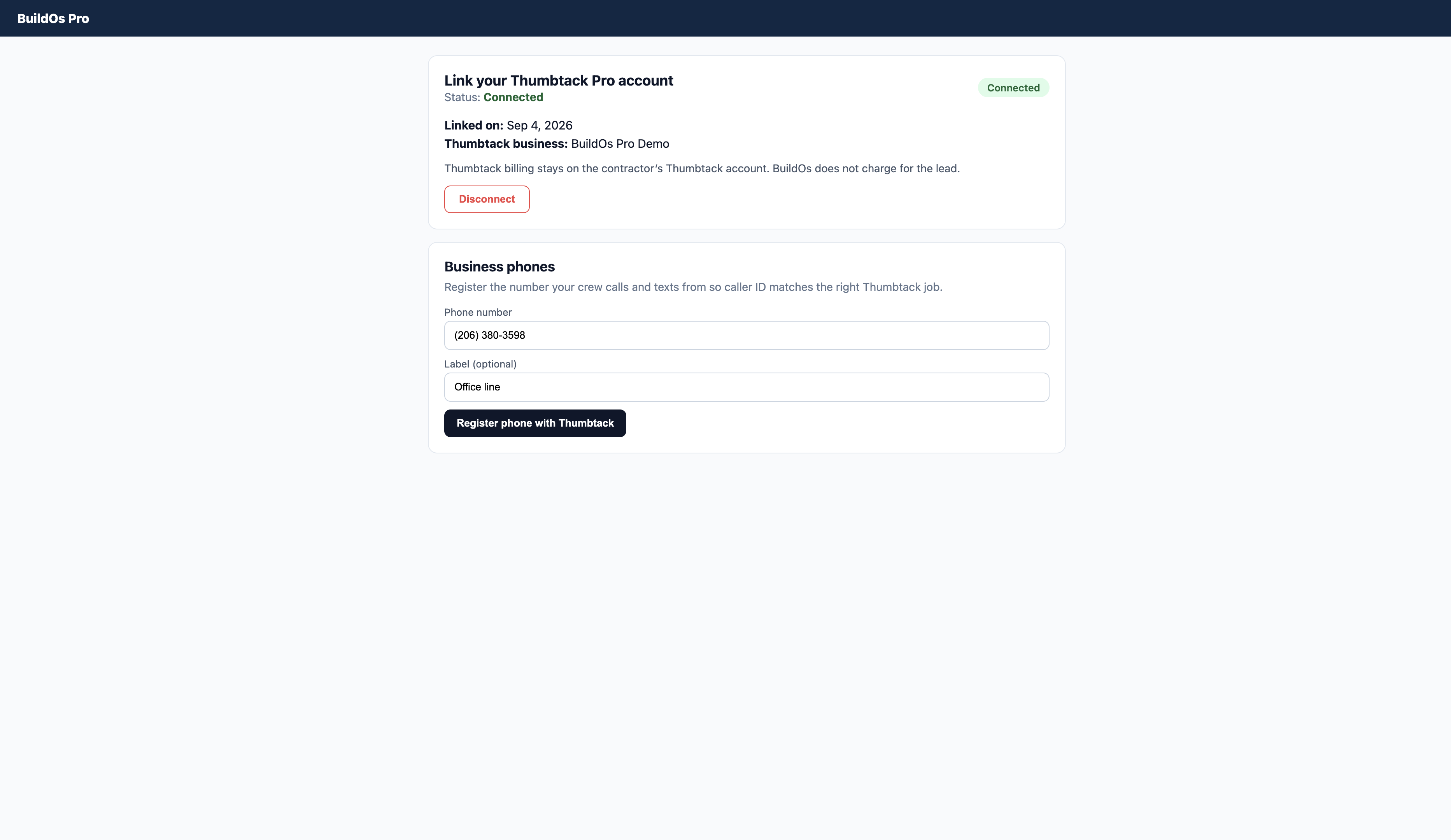
Step 3 — Business phone
After connect, they register the office or cell the crew actually calls from so caller ID matches the job.
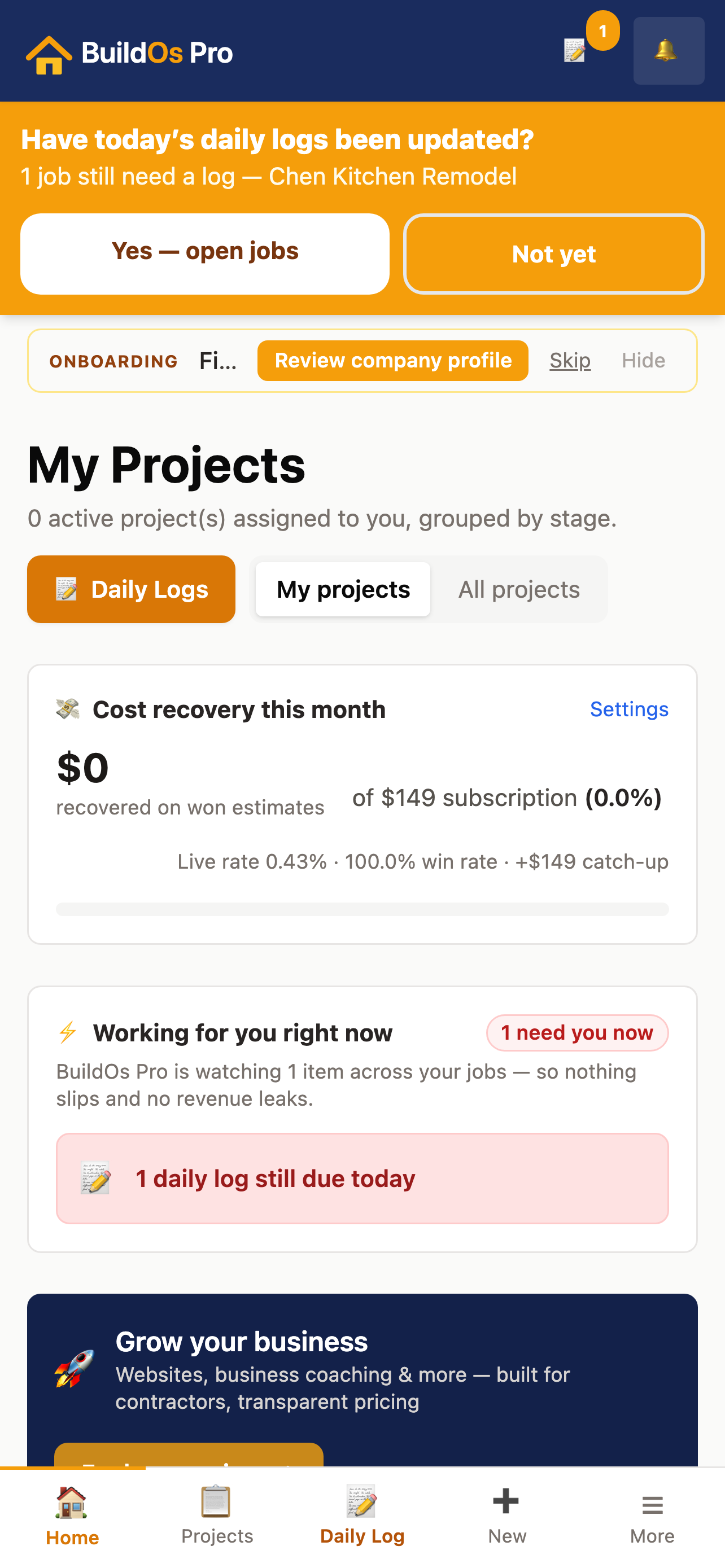
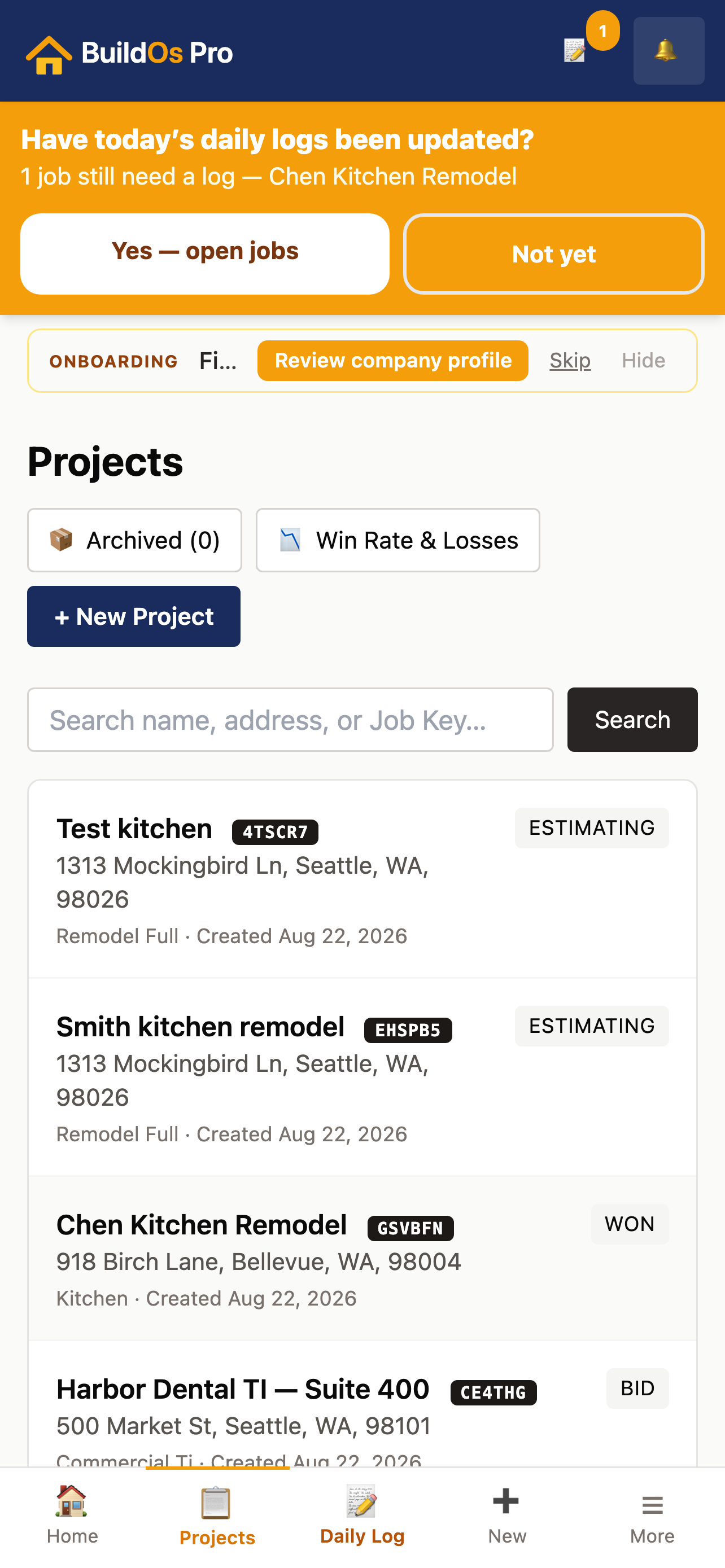
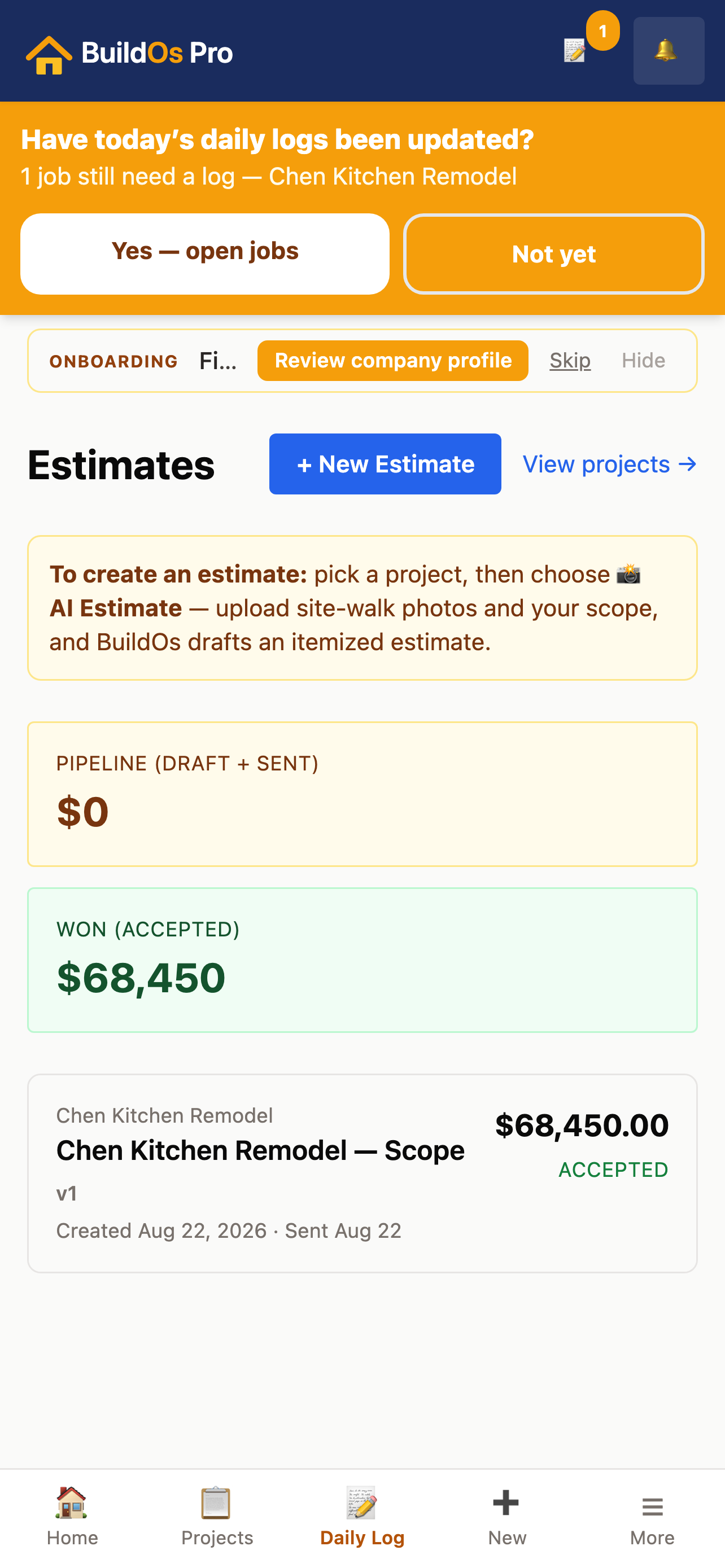
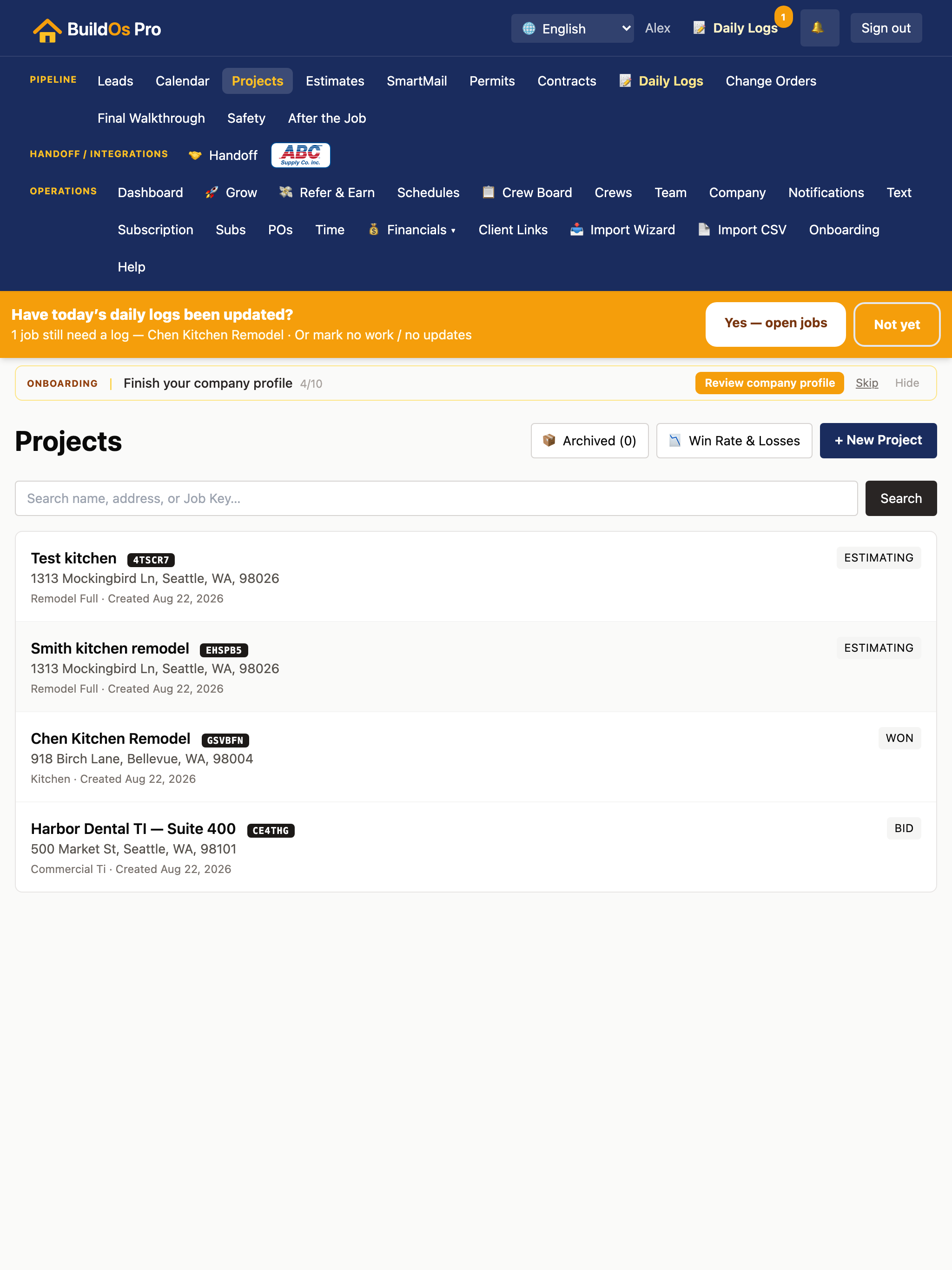
What BuildOs looks like after a job is in the system
These are the same screens we used for the Apple App Store and Google Play listing. A Thumbtack job becomes a normal BuildOs lead, then a project and estimate.
Support: info@buildospro.com · 206-380-3598