Log in · BuildOs Pro Help
BuildOs Pro on iPhone Duo
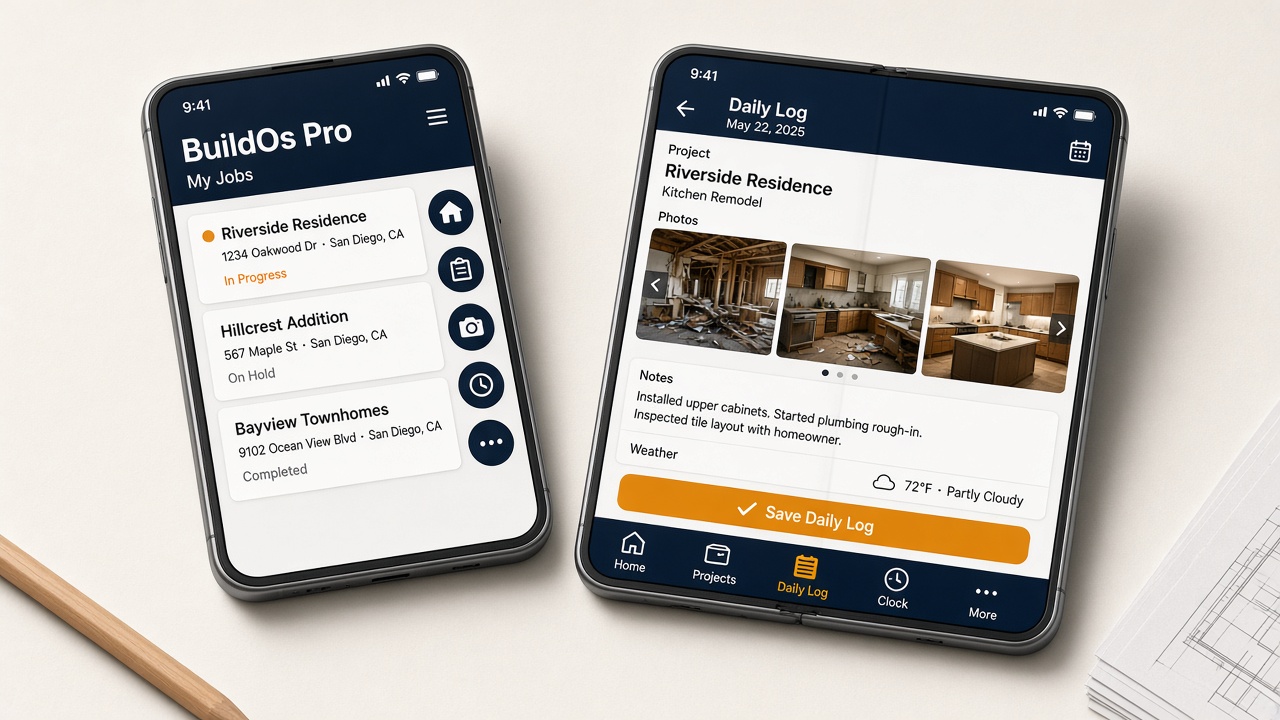
Apple’s folding iPhone is two screens in one phone: a small cover when it is closed, and a larger inner screen when you open it. BuildOs Pro uses the same login on both. Field work stays on the tabs. Everything else is under More. After you sign in: More → Help → iPhone Duo.
Install
- Install BuildOs Pro from the App Store.
- Open the app and sign in. Demo / review login is the same as every other device.
- Allow location if you use Clock, and camera / photos for Daily Logs, site walks, and Scan this room (LiDAR iPhone Pro, BuildOs Pro app only — not Safari).
- Step-by-step install: Get the app.
The Duo unlocks with Touch ID (it has no Face ID). That only unlocks the phone. BuildOs still uses your email and password.
Closed (cover screen)
The cover is short. To keep Daily Logs and Clock easy to reach, the five tabs move to a right-side rail — icons only:
- Home — today’s jobs and nudges
- Projects — the jobs assigned to you
- Daily Log — snap photos, save the day’s log
- Clock — Timekeeper arrive / leave at the job address
- More — Leads, Estimates, Schedule, Help, Subscription, Password, Sign out
Each icon is a large tap target. The label is in More if you forget which is which.
Open (inner screen)
- Held like a book, portrait: the same five tabs sit along the bottom, with names — Home, Projects, Daily Log, Clock, More.
- Turned sideways: the tabs return to the right-side icons so the short height is not eaten by a fat bar.
- Lists and photos use the extra width. You are still in the field app — not the computer mega-menu.
Folded like a book, or sat on a table
You can leave the Duo partly folded. Buttons, alerts, and the More sheet stay off the crease so they are still tappable. Daily Logs, project lists, and other scrolling pages can cross the fold — flick to keep reading, same as a long page on any phone.
On a table (hinge across the middle), Clock and Daily Log stay on the bottom half where the phone is steady to tap.
What to do on the Duo
- Daily Log — photos on either screen. Wait for photos ready, tap Save Daily Log, then Log sent. You can close the phone.
- Clock — keep the Clock screen open while you are on the job. Locking the phone pauses the stamp until you come back. How-To: Timekeeper / Clock.
- Site walk — microphone + camera on the inner screen is easier. On a LiDAR iPhone Pro in the BuildOs Pro app (not Safari), tap Scan this room after Start. Scan fills floor SF, height, and walls. Tape leftover cabinets / shower. Cover still works for a quick photo.
- Leads, Estimates, Schedule, POs, Financials — More. Cards on the phone; big tables are easier on a laptop.
- Subscribe (App Store) — More → blue Subscribe Crew / Builder / Scale (also labeled In-App Purchases). Apple’s payment sheet, not a website checkout.
What stays on the computer
You can open every module from More. Wide estimate lines, materials, time sheets, and financials are built as tables — they scroll sideways on a phone. Use the Duo for the jobsite. Use a laptop or desktop for long estimating and books.
If something looks wrong
- Force-quit BuildOs Pro and open it again after you fold or unfold.
- Confirm you are on the live app (App Store or Safari on buildospro.com), not an old home-screen copy.
- From Help, tap Report a bug and say “iPhone Duo” plus cover or open.
- Open Help from More (the last tab). Then tap the iPhone Duo tab.